Customer
A customer is an individual or organization that purchases goods, services, or products from a business. In the context of business, a customer is the end user who drives demand and sustains a company’s operations by purchasing or subscribing to what the company offers.
To access the Customer list, go to: > Home > Application > Point Of Sale > Setup > Customer
How can I get Benefit ?
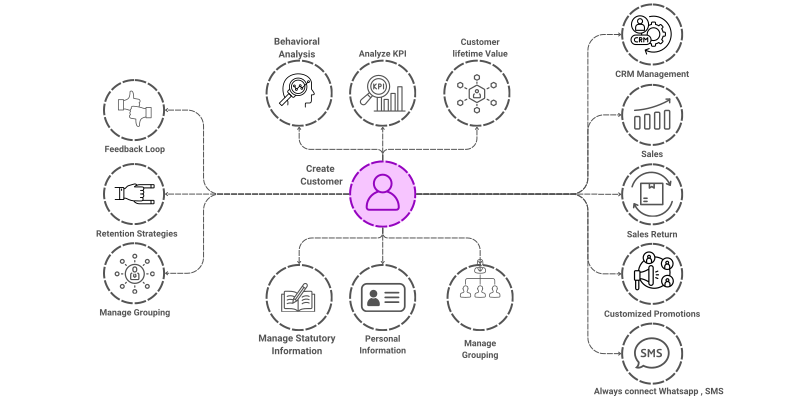
- Personalized Marketing and Promotions : Enables businesses to segment customers based on purchase behavior, preferences, or demographics. Helps in launching targeted marketing campaigns and personalized offers to increase sales.
- Improved Customer Service and Support: : Allows customer service teams to access complete customer profiles, past interactions, and order history for better support.
- Enhanced Customer Relationship Management (CRM) : Provides a 360-degree view of the customer, including interactions, orders, feedback, and service history. Supports proactive management of customer relationships, helping increase loyalty and retention.
Fields Information
| Field Name | Description |
|---|---|
| Customer Name | Hers, you can enter the name of the Custoemr |
| Mobile No | Customer Mobile no |
| Address | you can add Customer address for further communication |
| City | Here, you can select the city of the Customer |
| Pincode | you can mention the Pincode |
| Customer Group | if you wants to make some customer groups, you can enter group name |
| GST No | you can enter the GST Registration No if any |
| Do not Distrub | if Customer not interested to get any messages, you can set the mode |
How to Create a Customer
- Go to the Customer list and click on Add New.
- Enter the name for the Customer
- Enter Mobile No & Address
- Select the City from list
- Enter PinCode
- Enter Customer Group if any
- Enter Customer GST Registration No
- Set the
Do not Distrubmode

How to Edit a Customer
- Go to the Customer list
- Locate the Customer, Click on the Pencil icon to open whose details you want to Edit
- Make the necessary changes
- Click on
Save
How to Delete a Customer
- Go to the Customer list
- Locate the Customer, Click on the Delete icon to open whose details you want to Delete
- Click on
Delete
Prerequisites
- City master should be required to create a Customer