Vendor
Vendors are companies or individuals who provide you with products or services.
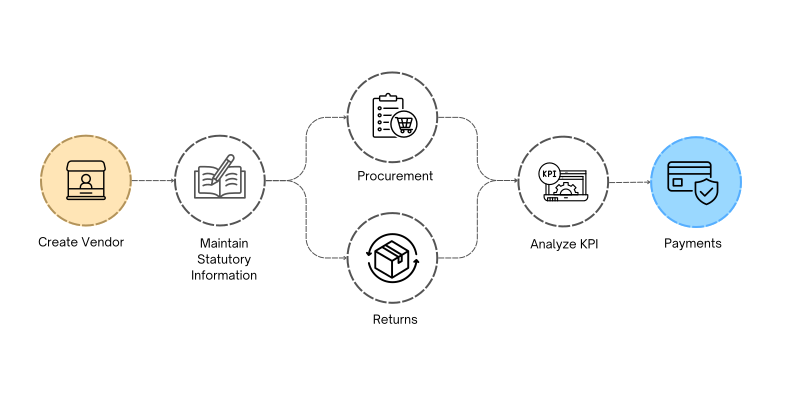
To access the Vendor list, go to: > Home > Application > Procurement > Setup > Vendor
How can I get Benefit ?
- Centralized Vendor Information : Provides a single source of truth for vendor details across different departments like procurement, finance, and inventory management.
- Efficient Procurement and Financial Processes : Helps with issuing purchase orders, handling invoices, and tracking vendor performance. Automates workflows such as PO creation, invoice matching, and payment processing, leading to greater efficiency.
- Cost Control and Negotiation : Facilitates better negotiation by providing insights into historical purchases and spending patterns.
Fields Information
| Field Name | Description |
|---|---|
| Vendor Code | User can enter manual code, if leave blank sytem will assign auto code to the Vendor |
| Vendor Name | Here, you can enter the official name of the vendor's Company |
| you can add Vendor email address for further communitaion | |
| City | Here, you can select the city of the Vendor |
| Address | you can add Vendor address for further communitaion |
| Pincode | you can mention the Pincode |
| Contact Person | It refers to the main contact to whom the transactions will be created. |
| Mobile No | you can enter the Mobile no of the contact person |
| GST Registration Type | Not Registered, Regular GST Registered, Composite Scheme Registration |
| GST No | you can enter GST Registration No for further transactions |
| MSME Registration No | if the Vendor register as MSME, you can manage the Details |
| SEZ Registration No | if the Vendor register under any SEZ, you can manage the Details |
How to Create a Vendor
- Go to the Vendor list and click on Add New.
- Enter a Code for the Vendor (if leave blank auto code will be assign by the system)
- Enter the name for the Vendor
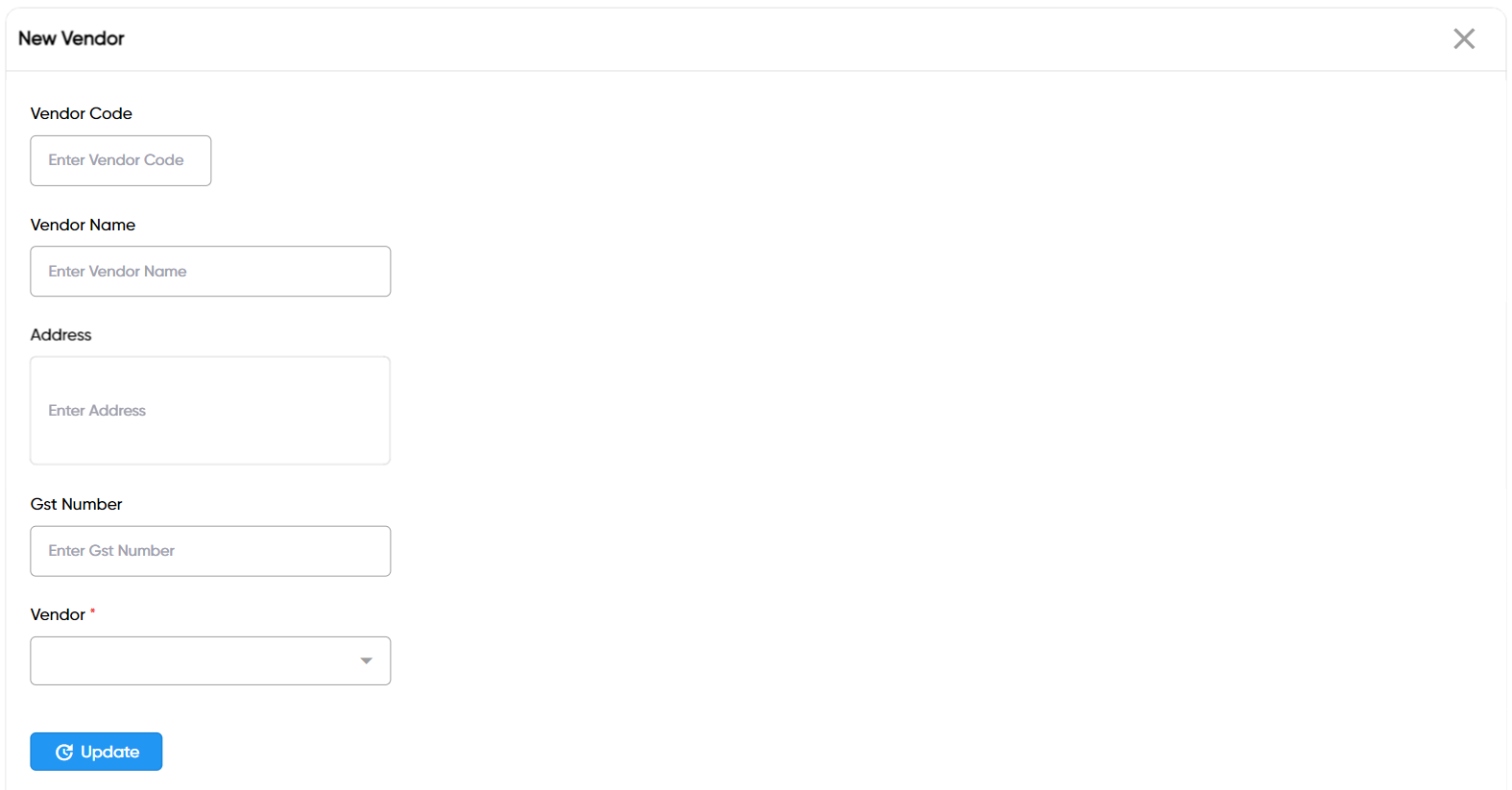
- Enter the City
- Select the GST Registration Type
- Enter the remaning fields if needed
- Click
Save
Edit a Vendor
- Go to the Vendor list
- Locate the Vendor, Click on the Pencil icon to open whose details you want to Edit
- Make the necessary changes
- Click on
Save

Delete a Vendor
- Go to the Vendor list
- Locate the Vendor, Click on the Delete icon to open whose details you want to Delete
- Click on
Delete
Prerequisites
- City master should be required to create a Vendor