Purchase Receipt
A purchase receipt (commonly known as a goods receipt or receiving report) is a document or process that confirms the receipt of goods or services by the buyer from the vendor.
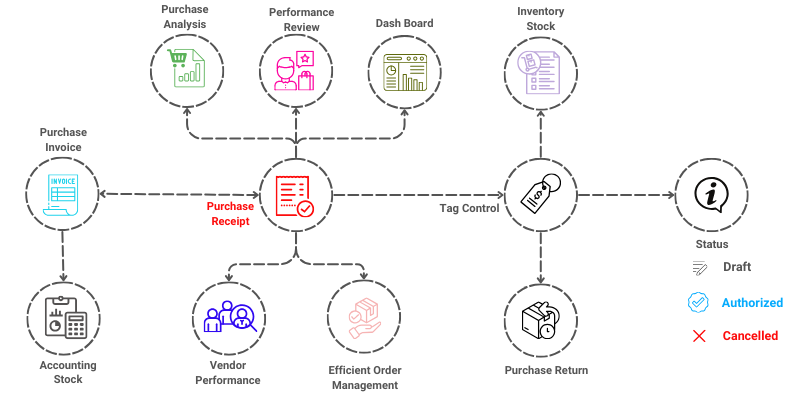
To access the Purchase Receipt, go to: > Home > Application > Inventory > Operations > Purchase Receipt
How can I get Benefit ?
- Verification: Confirms that the goods or services received match the purchase order in terms of quantity, quality, and specifications.
- Inventory Management: Updates inventory records to reflect the receipt of new goods, ensuring accurate stock levels.
Properties
Primary Properties
| Property | Description |
|---|---|
| Document Date | Purchase Receipt Entry Date default Business Date displayed |
| Document No | Purcahse Receipt Entry No generated by default |
| Vendor | You Can Select Vendor from List or Add New One |
| Reference No | You Can Enter any reference no |
| Reference Date | Enter the reference date |
| Purchaser | You Can Select Purchaser from List or Add New One |
| Notes | Can Enter information releated to Purchase Invoice |
Item Properties
| Property | Description |
|---|---|
| Product | Here, you can select Product from Prodcut List |
| Quantity | Enter Item Quantity required |
| Base Rate | Enter the price of the item before discount |
| Discount | Enter discount amount if any |
Status of a Purchase Receipt
- Draft : This status indicates, that a purchase receipt has been created and is yet to be Authorised.
- Authorised : This status indicates, that a purchase receipt has been created and is Authorised.
- Cancelled : This indicates that your purchase receipt has been cancelled.
Create New Purchase Receipt
- Go to the Purchase Receipt list, click on
Add New - You will be navigated to a new window for entering the details for the new purchase receipt to be created.
Primary Purchase Receipt Information

- you can observe
Document Date&Document Nois generated by default. - Under the Vendor name field, you can either pick the vendors from the list you have already created or you can add a new vendor by clicking on the + New vendor option.
- Enter reference & date if any.
- Select Purchaser.
Item Information
- Under the Product field, you can pick the Product from the list you have already created.
- Enter Quantity and Base Rate.
- Enter Discount if any.
- Click on
Applyto add item to Purchase Receipt.
Link Receipt With Previous Purchase Orders
To include Purchase Order reference in the Purchase Receipt
- Select the vendor
- click on
Select Items from Purchase Order(s) - you will prompted to Purchase Orders List releated to the selected vendor.
- you can select the items which are going to add into Purchase Receipt.
- click on
Ok - All Item will be added to Purchase Receipt.
Link Receipt With Previous Purchase Invoices
To include Purchase Invoice reference in the Purchase Receipt
- Select the vendor
- click on
Select Items from Purchase Invoice(s) - you will prompted to Purchase Invoice List releated to the selected vendor.
- you can select the items which are going to add into Purchase Receipt.
- click on
Ok - All Item will be added to Purchase Receipt.
Additional Information
- You can enter any other charges mention in the purchase receipt.
- You can enter any discount given by the vendor.
- You can enter Round Off Amount to make round the total Amount.
- You can record Notes for the purchase receipt.
- Alter Fill up the all necessary details click on
Save as Draftto Save the Purchase receipt.
Edit Purchase Receipt
- Go to the Purchase Receipts list, Select the preferred purchase receipt and click on
Edit - You will be directed to a edit purchase receipt page.
- Update all the necessary changes.
- Click the
Save as DraftorSave as Authorisedbutton to update your changes.
info
Only Purchase receipts in Draft status can be edited.
Cancel Purchase Receipt
- Go to the Purchase Receipt list, Select the preferred purchase receipt and click on
Edit - You will be directed to a edit purchase receipt page.
- Click the
Cancelbutton to Cancel your changes.
Important Note
info
Only Purchase invoices in Authorised not in Received status can be cancelled.