Payment
The Payment refers to the transfer of money or an equivalent value from one party to another to settle a liability, expense, or obligation. It is recorded as a transaction in the financial records and can be made in various forms.
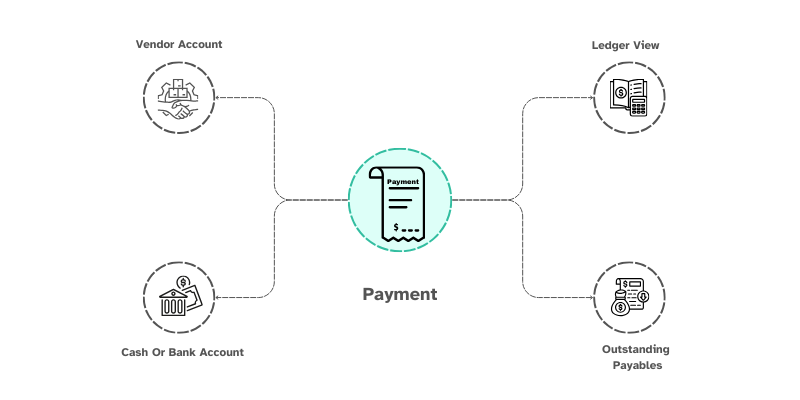
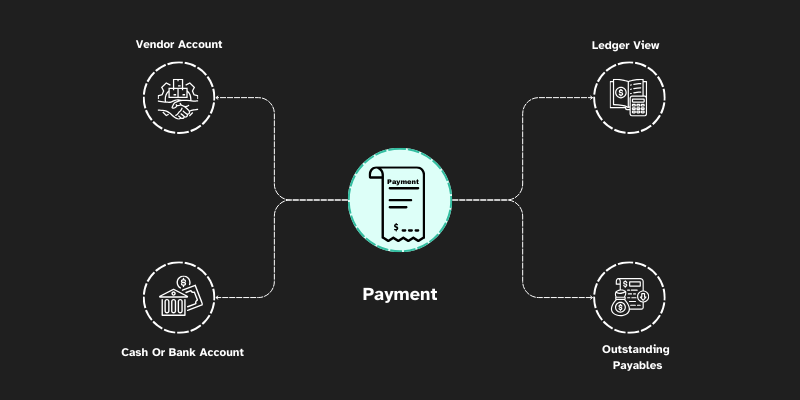
To access the Payment, go to: > Home > Application > Finance > Operations > Payment
How can I get Benefit ?
ValueBot offers a useful feature for account ledger through Payment
- Clears Liabilities : Payments help settle outstanding debts, reducing accounts payable and maintaining good credit standing.
- Improves Cash Flow Management : Regular payments ensure smooth cash flow, preventing cash shortages or overdrafts.
- Enhances Financial Accuracy : Proper recording of payments ensures accurate financial statements and bookkeeping.
- Builds Business Credibility : Timely payments strengthen relationships with suppliers, lenders, and stakeholders.
- Reduces Interest & Penalties : Paying dues on time prevents late fees, interest charges, and legal issues.
- Facilitates Budgeting & Planning : Tracking payments helps businesses plan expenses and allocate resources effectively.
- Ensures Regulatory Compliance : Proper payment recording helps businesses comply with tax laws and financial regulations.
Properties
Primary Properties
| Property | Description |
|---|---|
| Voucher No | Voucher Entry Number will generate default |
| Date | Date refers the Transaction date |
| Reference No | Can Enter other references number related to Voucher |
| Payment From | You Can Select Bank Account or Cash on hand from list |
| Amount | Enter Transaction Amount |
| Payment to | You Can Select Account ledger from list |
| Amount | Enter Transaction Amount |
| Narration | Can Enter information releated to Voucher |
| Report Format | You Can Select Report Format from list |
Line wise Properties
| Property | Description |
|---|---|
| Type | If we select 'To-Credit,' the amount will be posted to the credited account |
| Type | If we select 'To-Debit,' the amount will be posted to the debited account |
| Ledger | You Can Select Account ledger from list |
| Amount | Enter the amount you need to post to the ledger |
Create New Payment
- Go to the Payment


- You can observe
Voucher Numberis generated by default. - Under the Payment from you can pick the Bank Account or cash on hand from the list you have already created.
- Enter the Amount which you have to Pay.
- Under the Payment to you can Select the Vendor Account Ledger or Customer ledger from the list you have already created.
- Enter the amount to post to their account ledger.
- By Clicking
Add Newyou can use line wise entries to post amount to other ledgers. (Ex. TDS Deduction Entries)


- Enter any additional information in the Narration field for your reference.
- Select the format from Report format dropdown.
- Click
Saveif you want to save the voucher. - Click
Save & Printto get print of payment voucher.
Edit a Payment
- Go to the Ledger Summary
- Select Account Ledger and Choose the transaction


- Make Necessary changes
- Click
Save
Delete a Payment
- Go to the Ledger Summary
- Select Account Ledger and Choose the transaction


- Click
Delete
warning
Deleting a payment from the ledger will cause a variation in the closing balance.